.jpg)

How to Create and Schedule a Google Meet (Step-by-Step Guide)
This guide will walk you through creating and scheduling a Google Meet without getting bogged down in navigating different apps, tabs, and settings. We'll show you the ropes on setting up a meeting, scheduling a Google Meet for later, handling recurring meetings, and getting the word out to invitees so that your meeting link gets used for a change. You'll see how this all ties together in Google Calendar, the Google Meet app, the Gmail app, and the calendar app on your phone.
If you're someone who regularly schedules meetings with a bunch of people & finds yourself jumping all over the place trying to find a time that works for everyone, then tools like Wellpin can be a huge time saver. Wellpin integrates with Google Calendar & lets you whip up simple booking links and automatically book meetings without all the back-and-forth emailing. Rather than manually wrangling schedules all the time, you can let participants pick a time that works - and still use Google Meet as your go-to video conferencing tool.
Quick Answer - How to Create and Schedule a Google Meet
If you just want the fast version (and Google loves this for snippets), here it is:
1. Open Google Calendar
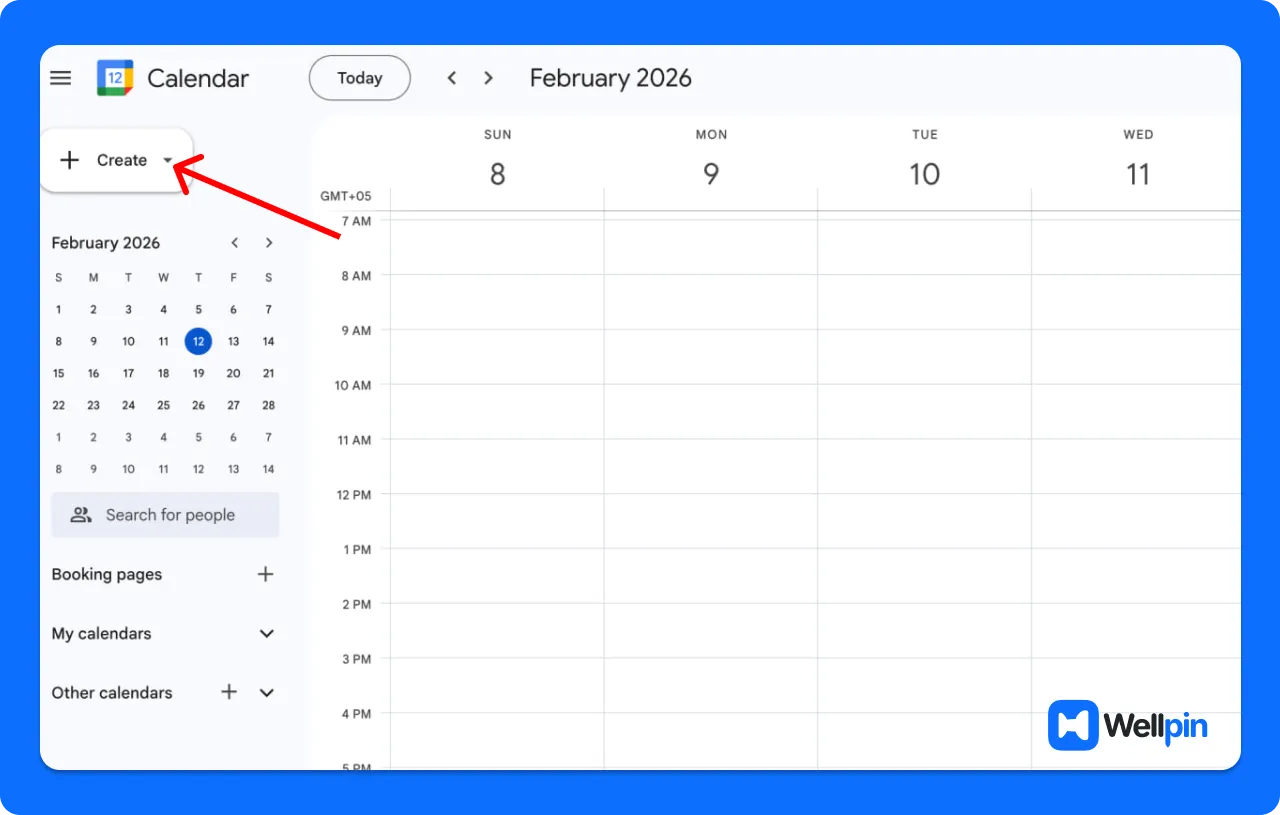
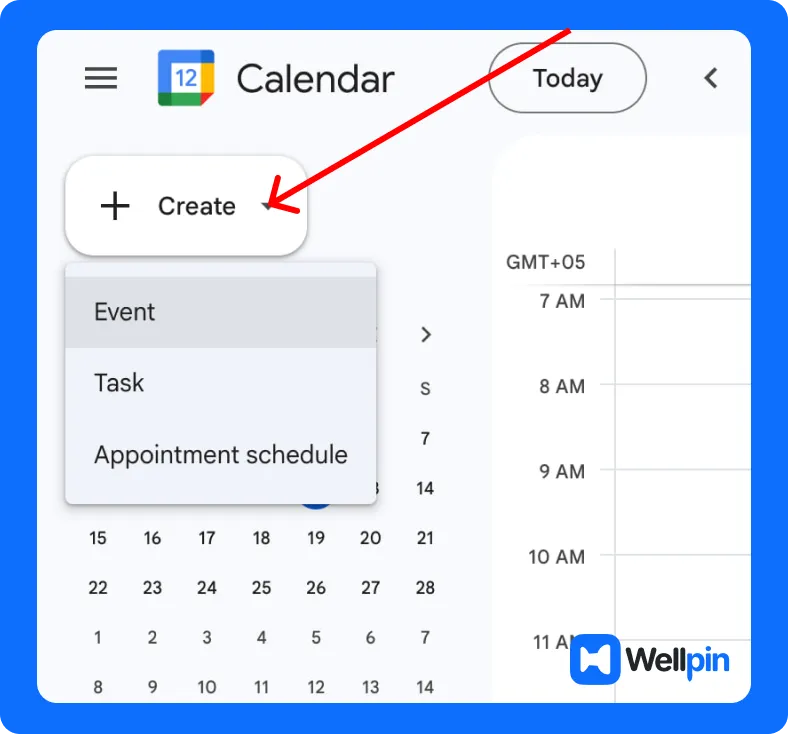
2. Click New event (or the create button)
3. Click Add Google Meet video conferencing
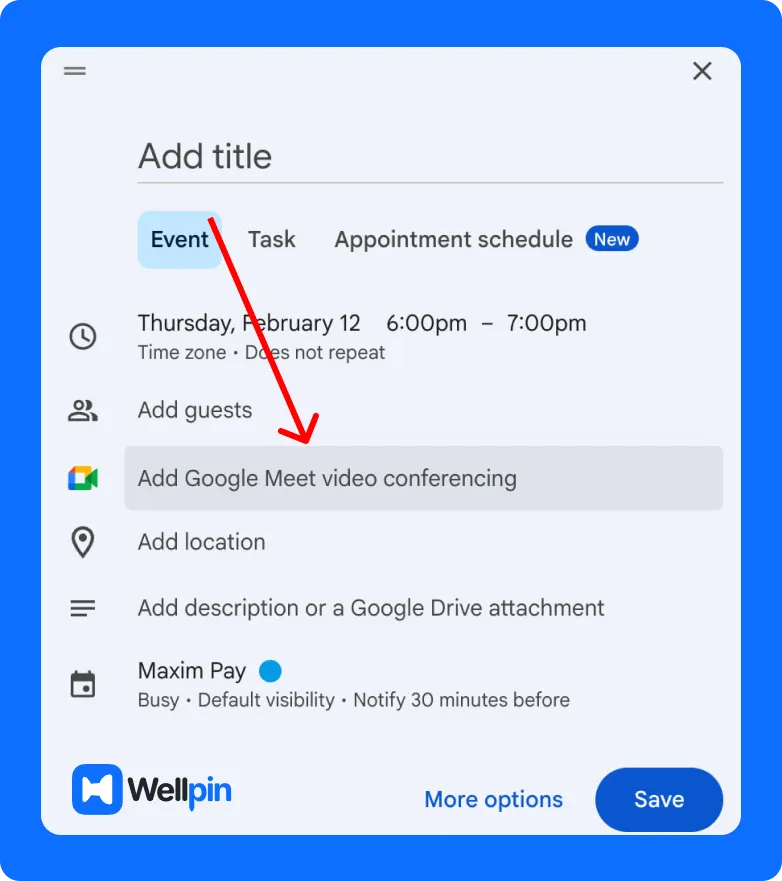
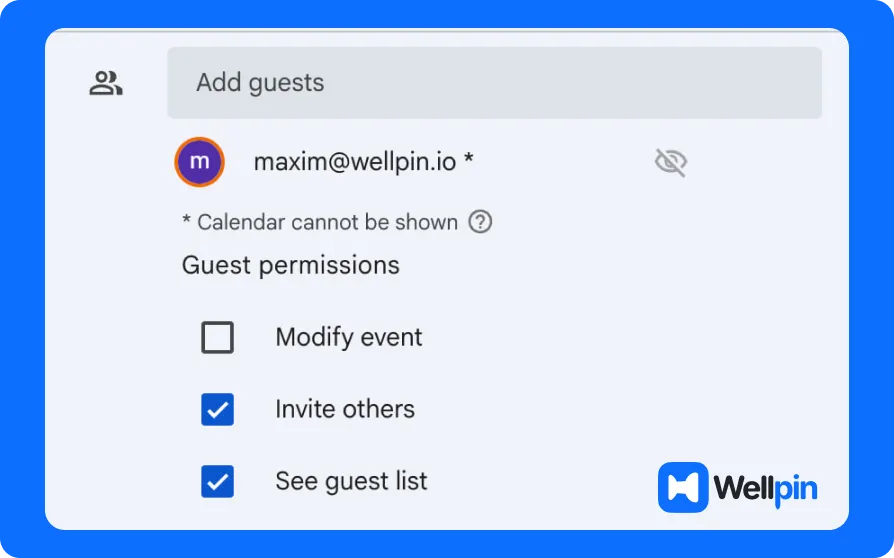
4. Add guests and fill in the meeting details
5. Click Save (or tap save on mobile)

That’s it. Your google calendar event is created, your google meet link appears automatically, and your calendar invite goes out to everyone.
Now let’s slow down and look at each part like a human who doesn’t want surprises five minutes before a call.
How to Create a Google Meet
There are three common ways to create a meeting in Google Meet. All of them lead to the same place: a virtual meeting room with a meeting link that people can use to join with Google Meet.
1. Start an instant meeting
If you need a call right now:
- Open the google meet app, the meet app in your browser, or use the meet icon in Gmail
- Click New meeting.
- Choose Start an instant meeting.
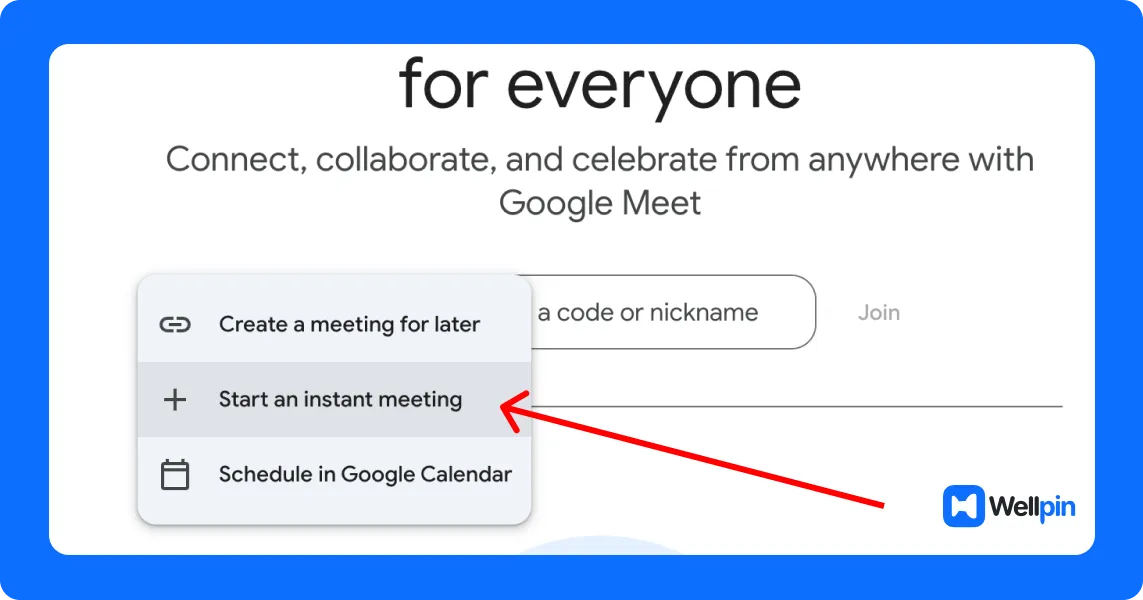
Google creates a google meet session immediately. You’ll see the meeting link and a meeting code you can copy. Share it in chat, email, or any messaging app. People click click join and they’re in the video call.
This is perfect for quick syncs. Not great for planning, reminders, or time zones.
2. Create a Meet link only
From the meet app or google meet app, you can choose Create a meeting for later. Google gives you a video meeting link you can reuse or share. No calendar app, no schedule yet. Just the link.
This is useful if you want a reusable room or you’ll paste the link somewhere else (like a course page or shared doc).
How to Schedule a Google Meet for Later
Most work calls, classes, and team check-ins are a future meeting, not an instant one. That’s where schedule a Google Meet properly comes in.
Here’s the clean flow using Google Calendar:
1. Open Google Calendar (web or calendar app).
2. Click New event.
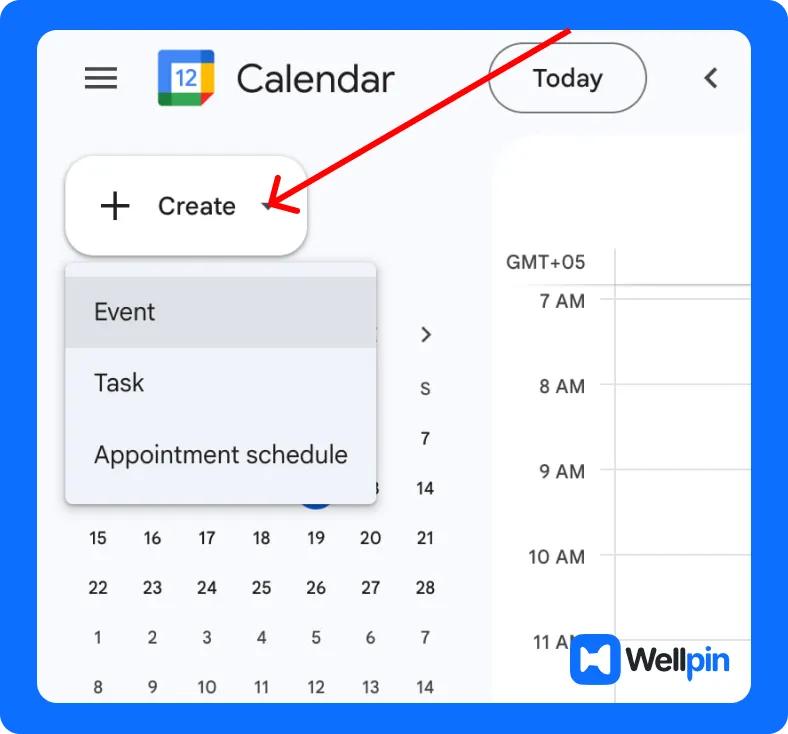
3. Set the date and time (double-check time zones).
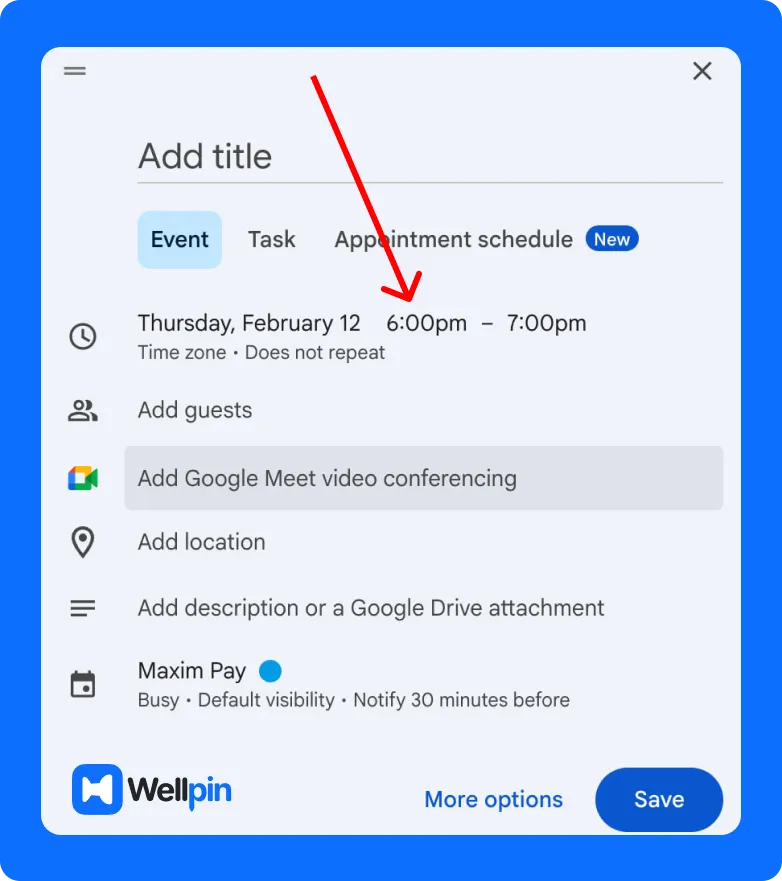
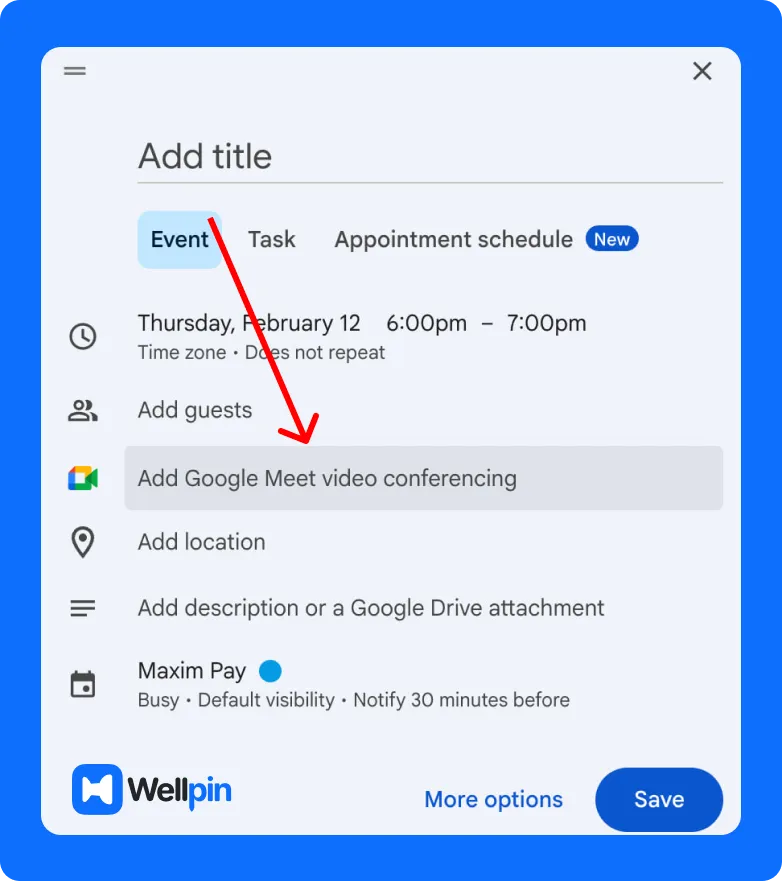
4. Click Add Google Meet video conferencing.
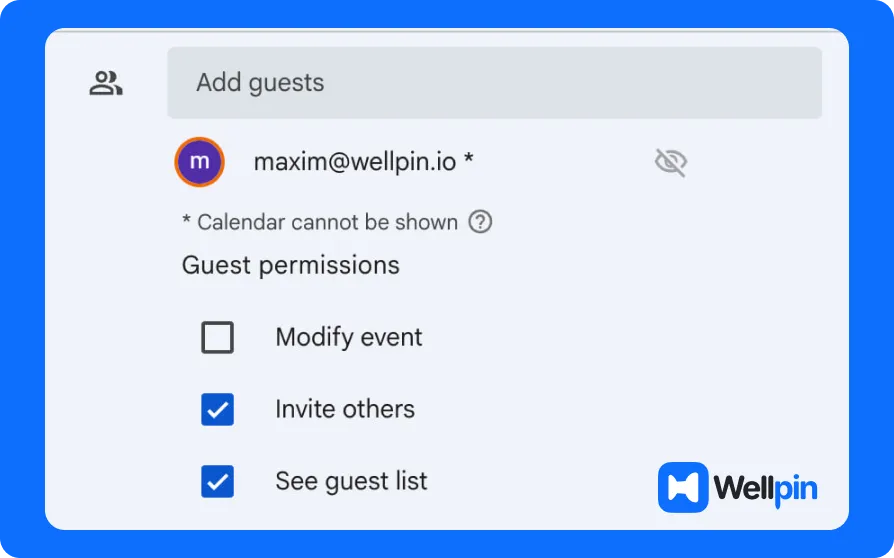
5. Invite participants by adding their emails.
6. Add meeting details (agenda, links, notes).
7. Click save and choose to notify guests.

Google sends out a calendar invite - in the form of an email or a calendar invite - to everyone. In one go, they get the meeting link, the time and all the meeting invite details to see at a glance.
You can do the same thing from your phone using the Google Calendar app or from Gmail via the Gmail app - and the process is basically the same. First create a new event, then add a Meet, and then just press save.
This is a big part of how people sort out their meetings and turn their whole meeting life from a complete mess into something manageable.
How to Set Up a Google Meet Properly
Creating a meeting is easy. Setting it up so it actually runs smoothly is the part people forget.
Account types: personal vs workspace
You can use Google Meet with a personal google account or with google workspace.
- Google Workspace users and google workspace essentials users often get extra features (like better host controls, recordings, or live stream options).
- For basic video conferencing, both work fine.
Permissions and host roles
- The meeting organizer or meeting creator has control over the meeting.
- In many cases, only the meeting creator can change certain settings.
- You can grant permission to others (like co-hosts) using host controls.
This matters when you’re running classes, team calls, or anything where you don’t want a random uninvited person taking over.
Basic meeting settings
Inside the google meet session, you’ll find host controls for:
- Who can join the meeting
- Whether anonymous users are allowed
- Whether chat, mic, or camera are restricted
- Access to things like a dial in number (on some plans)
If you’re using Meet for work, school, or google classroom, it’s worth setting this up once so every google meet video meeting runs the same way.
If you're setting up recurring meetings or configuring permissions, check our full guide: How to Set Up a Google Meet.
How to Create a Recurring Google Meet
Weekly team sync? Biweekly class? Monthly review? This is where recurring meetings save your sanity.
In Google Calendar:
1. Create a new event.
2. Add Google Meet.
3. Set the date and time.
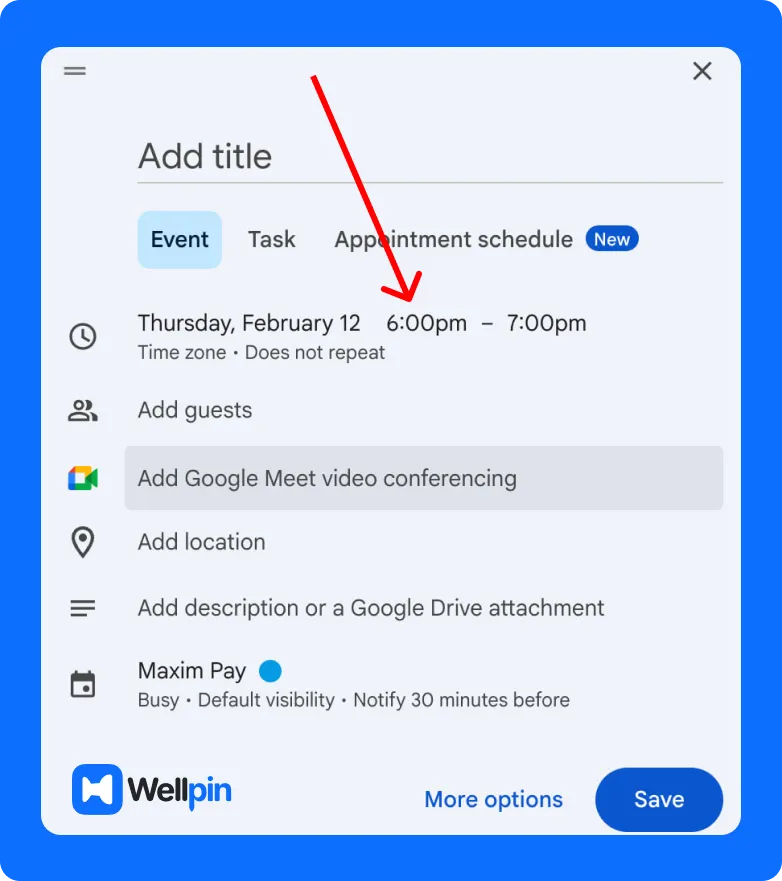
4. Click the repeat option (Daily, Weekly, Custom, etc.).
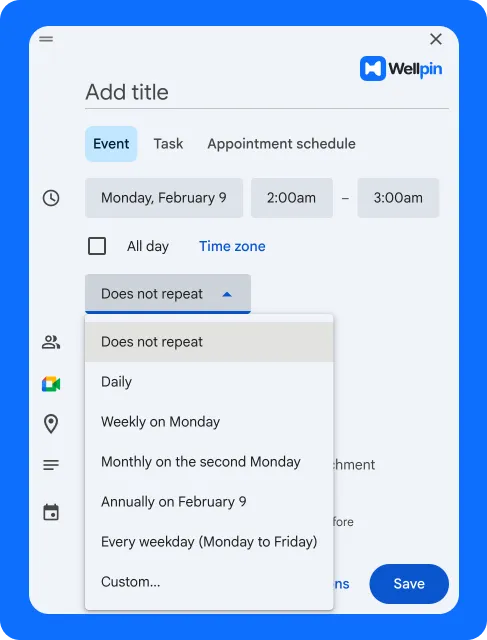
5. Click save.

Now you have one google meet session that repeats. The same google meet link is reused each time, and everyone gets reminders automatically. This is a huge part of keeping meetings organized and your scheduling system predictable.
You can always edit the series later if the time slot changes or if you need to update the meeting information.
Common mistakes with recurring meetings:
- Changing only one event instead of the whole series
- Forgetting to update the guest list
- Ignoring time zones when someone joins from another region
For teams that run a lot of recurring meetings or client calls, combining Google Meet with a scheduling tool like Wellpin makes the process much smoother. You can keep your recurring Google Meet sessions in Google Calendar, while Wellpin handles availability sharing, booking pages, and time coordination - which is especially useful when working across different time zones.
Common Problems When Creating or Scheduling a Google Meet
Even though Google Meet is simple, a few things trip people up all the time:
1. The meeting link doesn’t appear
Usually this means you forgot to click Add Google Meet video in the google calendar event. Edit the event, add it, and click save again.
2. Guests didn’t receive the invite
Check if you actually added them and clicked notify guests. Also remind them to check spam or their calendar.
3. Wrong time zone
This happens more than anyone admits. Always check the time zones field, especially for a future meeting with remote meeting participants.
4. Permission issues
If someone can’t join, it may be a host controls or domain restriction issue. The meeting organizer may need to grant permission or allow external users.
Final thoughts
I guess the one thing that's really important to take away from all this is:
- For the super quick calls, just fire up an Instant Meeting in the Meet app.
- For anything more planned out, pop over to Google Calendar, create an event, add the Google Meet link and click Save. Easy peasy.
- For the ones that just keep going, it's just a case of setting up a recurring meeting and letting the system sort itself out.
That's it, that's the real lowdown on scheduling a Google Meet. Not exactly rocket science. It's just getting used to the straightforward way of using the Google apps you probably already have open all day.
After a while, you'll get the hang of this and it will become second nature. You'll be scheduling, sending links and watching people join before they even ask for the link. And honestly, that's when you know you've finally got this Google Meet business figured out.
If you're stuck with a workflow that involves heaps and heaps of meetings, or if you're working with people outside your organisation, or if you're dealing with a bunch of client meetings, then it might be a good idea to think about dragging in some extra tools to help with the scheduling. There are plenty of services like Wellpin that play nice with Google Calendar and Google Meet, and they'll let you automate lots of the booking and scheduling and all that other fun stuff, so you don't have to keep messing around with it all.