.jpg)

Managing appointments can be a real pain - all those emails, missed messages, and annoying phone calls asking "are you free at this time?" when you're juggling a load of clients or partners. But with Google Calendar's appointment scheduling feature, you can turn your regular calendar into a proper booking system where clients can book time slots without you lifting a finger. It's a real game-changer for simplifying the scheduling process and cutting down on mistakes like double-bookings and forgotten meetings.
For a lot of professionals, Google Calendar is already their go-to hub for events, meetings and reminders, so taking it to the next step and adding an appointment scheduling system just feels like a natural step. Being able to set up a booking page and let clients pick a time directly really streamlines the booking experience and makes your workflow way more scalable. Whether you're working solo or managing a growing client base, this approach helps keep you organised while keeping your calendar nice and tidy.
What Is Google Calendar Appointment Scheduling?

Google calendar appointment scheduling is just another way of saying you can define your available time and let others book appointments directly through a link - no more messing around with back-and-forth emails or trying to find a time that suits everyone. It lets you create a structured appointment schedule that shows your actual availability, working hours and preferred meeting duration - which in turn turns your calendar into a lightweight booking system that can handle client requests on the fly.
Each appointment gets created as a proper event inside your calendar, complete with all the event details like date, time zone, location and description. And when someone books a time slot, that slot becomes unavailable - which helps avoid conflicts and keeps your schedule accurate and reliable. It's especially useful for professionals looking for a simple way to manage bookings without breaking the bank on a full appointment scheduling software.
On top of that, users with a paid subscription or a paid account on Google Workspace get access to some premium features - like the ability to create multiple booking pages, ask for specific information from clients, and even connect Stripe to accept payments when clients book.
How Google Calendar Appointment Scheduling Works
The system works by combining your availability with a booking interface that clients can access through a link. You set up your availability, define your working hours and decide on the appointment duration - and Google Calendar automatically generates a booking page where users can pick a time that fits their schedule. This page displays a calendar grid with available slots, making it dead easy for clients to see when they can book time.
When a user picks a time and confirms the booking, Google Calendar goes and creates an event, sends out notifications and updates your schedule in real-time. This automation takes the hassle out of scheduling and makes sure both parties get booking confirmations and reminders. And if you're working with a remote team or doing online consultations, the integration with Google Meet makes it easy to create meetings on the fly.
And, the system also lets you add a 15-30 minute buffer between appointments to manage overrunning meetings and reduce fatigue. You can also set a maximum number of daily bookings to stop yourself getting overwhelmed, and keep your schedule manageable.
How to Set Up Google Calendar Appointment Scheduling
Setting up your appointment scheduling is as simple as opening Google Calendar and clicking the "create" button - then choose the appointment scheduling option. From there, you'll define your working hours, select specific dates, and set up your general availability. You can also customise the scheduling window, which shows how far in advance clients can book time.
While you're setting it up, you can define the appointment duration, from short calls to longer sessions depending on the service you offer. You can also add a buffer time between meetings to stop back-to-back bookings and reduce fatigue. Once it's all sorted, just click "save" and your booking page will be good to go - ready to share or embed onto your website.
To make setup easier, here are the key settings you should configure:
Pro tip: To create a new appointment schedule, just click the down arrow next to the appointment duration to adjust the length, and use the plus button to include multiple availability periods in a day. This lets you make your schedule flexible and tailored to your working style.
Step-by-Step: Setting Up Google Calendar Appointment Scheduling
Setting up Google Calendar appointments is a breeze - just get started by opening up your calendar, clicking that "Create" button and picking "Appointment schedule". Think of it like building your own booking system from scratch. First you'll need to set your working hours, availability & appointment duration - all pretty standard stuff.
After that, you'll want to sort out some of the important details like how much buffer time you need between appointments, the size of your scheduling window and how many bookings you can take on in a single day. Don't forget to save those settings so you don't have to redo them later.
Once you've got all that sorted, just click "Save" and your booking page is ready to roll. From there, go ahead and grab that booking link and slap it on your website, in your email signature or send it off to clients in a message. Instant bookings with no back and forth - now that's what we call scheduling made easy.
Managing Availability in Google Calendar Appointment Schedule
Managing availability is key to creating a reliable appointment scheduling system - because if your availability is off, you'll end up with missed meetings and frustrated clients. Google Calendar lets you define general availability, as well as adjust it for specific dates, when your schedule changes due to holidays or personal commitments. This flexibility helps you keep your appointment schedule realistic and up to date.
You can also manage different time slots across multiple days, so your calendar reflects how you actually work, rather than forcing a rigid structure. But while this works fine for simple setups, it can get a bit restrictive when you need multiple appointment types or more complex scheduling logic. For more advanced scheduling needs, many users switch to dedicated tools like Wellpin, which offer better control over availability, flexible appointment types, and a smoother booking flow. This becomes especially useful when your schedule starts to scale and you need more than just basic time slot management. At that point, it's probably worth looking at more specialist tools to get the job done.
Customizing Event Details for Better Appointment Scheduling
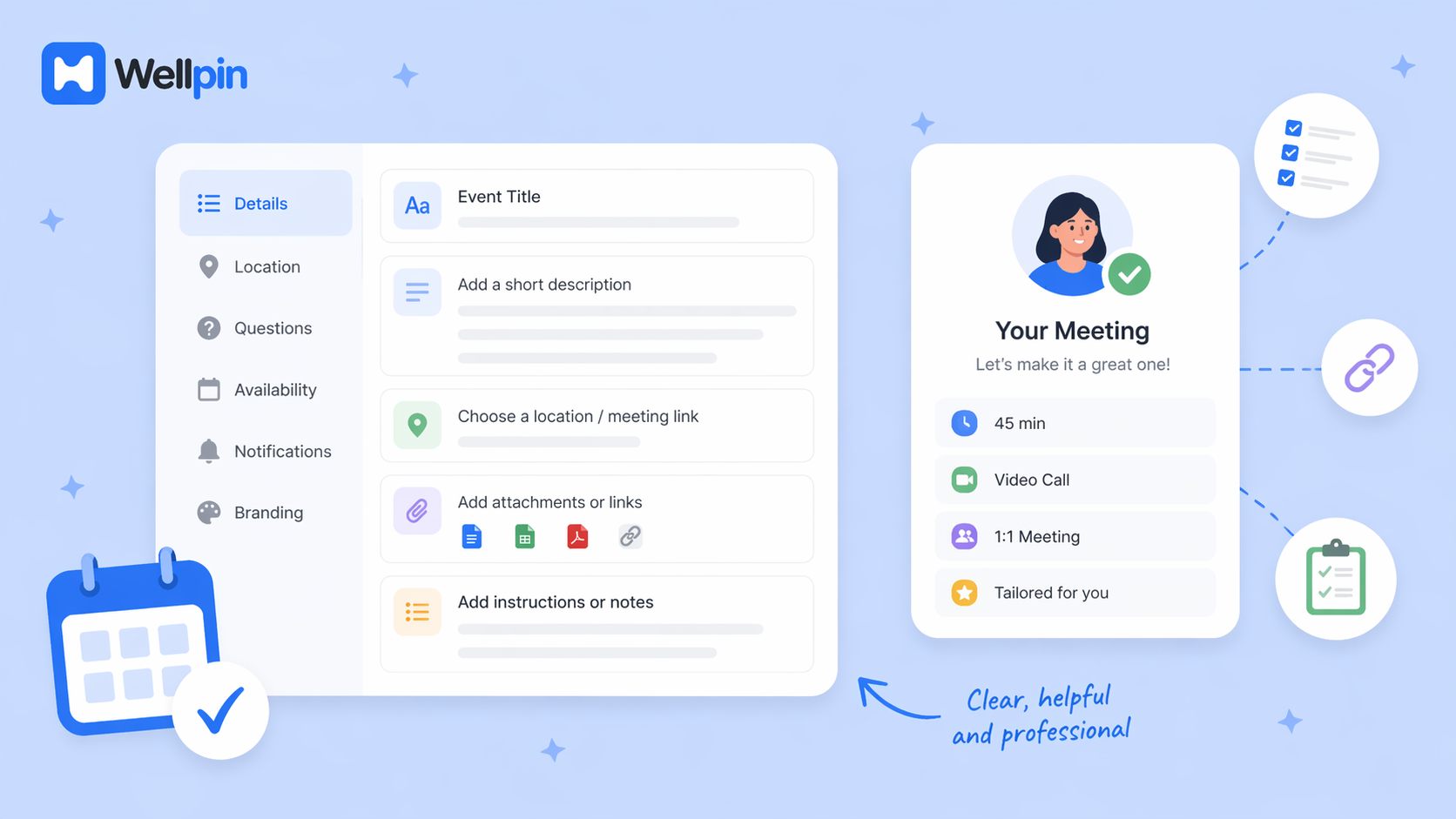
Each booking includes event details that set the stage for what the appointment's all about and what participants can expect. You can add a description, meeting location, and any additional instructions you think will help users navigate the booking process and get themselves fully prepared. Doing this can make a real difference in the quality of your meetings and reduce misunderstandings.
You can include links, meeting agendas, or preparation steps right in the event description, so your booking page feels a lot more professional from the start. Now while Google Calendar does come with some basic customization options, it really doesn't give you the level of personalisation you're looking for if you're a business. You know, a branded booking page, advanced forms - these are the kinds of features that really make your booking experience shine.
How to Share Your Google Calendar Booking Page
Once your schedule's all set up, you can share your booking page with clients via a simple link that they can access from any device at any time. This link - your go-to tool for booking appointments - saves you loads of time by letting clients book a time slot without needing to have a direct conversation with you. You can stick the link on your website, chuck it in your email signature, or just send it directly to clients who need to book a meeting with you.
To share a link to your Google Calendar booking page, just click on any appointment schedule block on your calendar grid, then click on "Share" and copy the link provided. Easy as that. This link shows your availability in a clear calendar format, making it dead easy for users to pick a date and time that suits them. It works fine on both desktops and mobiles too, so clients can book at their own pace. However, the one thing that lets Google Calendar down is that you've got limited options for customising the booking page to make it feel like part of your brand or business.
For users who're comfortable with getting their hands dirty with HTML, Google Calendar does offer the option to embed the booking page directly on your website. You can have it as either a button with popup or a full inline embed. Just click the down arrow beside the embed option to copy the code and then paste it into your site.
Limitations of Google Calendar Appointment Scheduling
Let's be honest - while Google Calendar's a powerful tool, it's not a full appointment scheduling software solution. It doesn't have features like payment processing, advanced customisation or detailed analytics that lots of businesses need. On top of that, the booking experience is pretty generic, which might not meet the expectations of clients who're used to more polished systems.
Here’s a quick comparison to better understand the difference:
There's also limited support for advanced features like multiple appointment types, team scheduling or custom booking flows. This can make it tricky to scale your scheduling process as your business grows. For many users, this is the point where they start looking for a more specialist solution.
At this stage, switching to a tool like Wellpin can help solve these limitations by offering a more complete scheduling system. Instead of working around restrictions, you get full control over your booking page, availability, and the overall scheduling process, which makes it easier to manage client bookings at scale.
How Wellpin Improves Google Calendar Appointment Scheduling
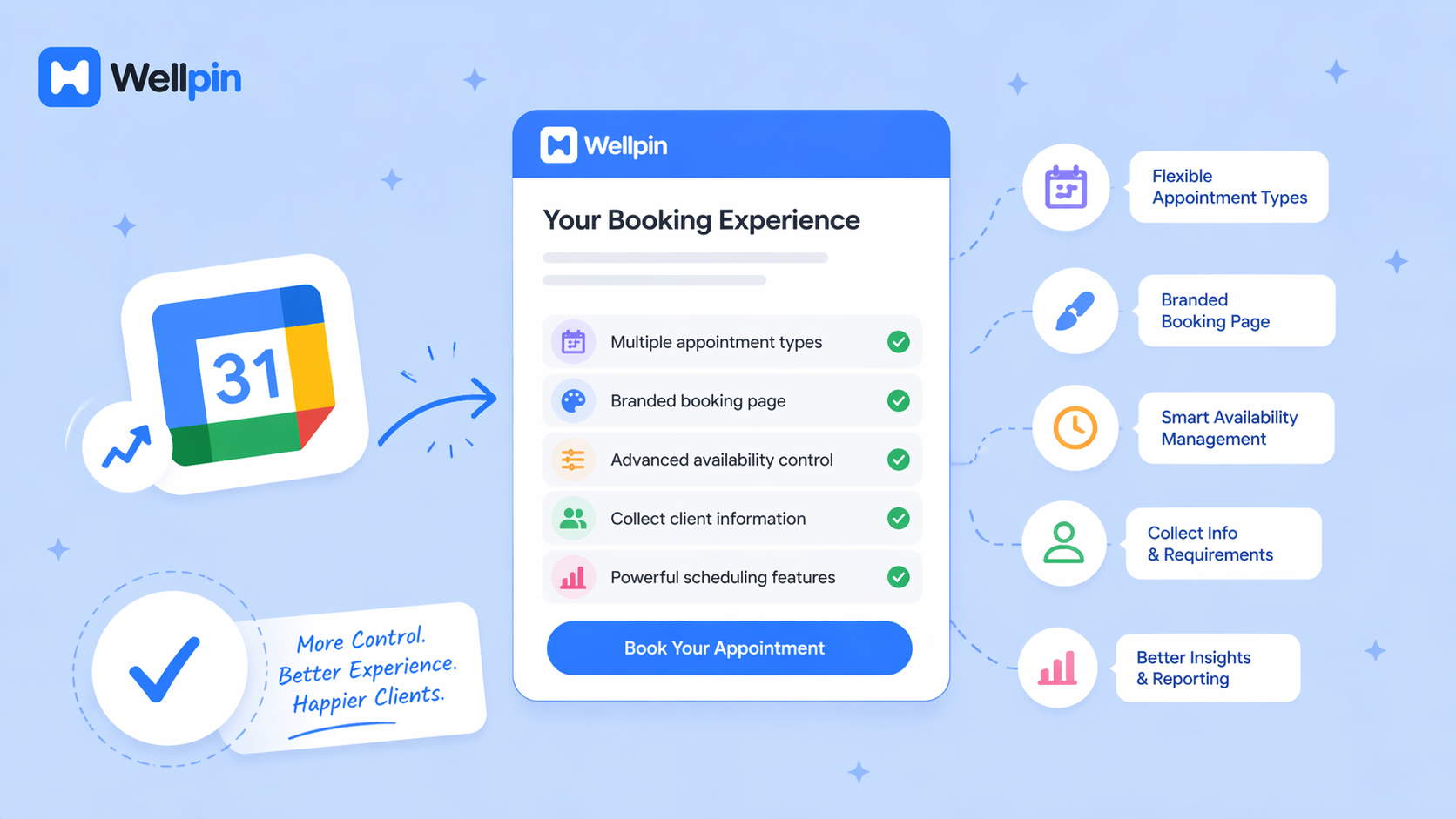
Wellpin takes the concept of Google Calendar appointment scheduling to the next level by offering a more advanced and flexible booking system. Rather than just sharing your availability, you create a fully structured booking experience that looks and feels professional and easy to use. This includes a custom booking page, better control over availability and more advanced scheduling features.
Unlike Google Calendar, Wellpin allows you to create multiple appointment types, customize your booking page to match your brand, and manage availability with greater precision. This makes the scheduling process not only more flexible but also more efficient for both you and your clients.
The platform's designed to handle more complicated scheduling scenarios without adding unnecessary complexity, making it suitable for both individuals and growing businesses. By focusing on the entire booking flow - from start to finish - Wellpin helps improve both efficiency and user experience.
Professional Booking Page vs Google Calendar Booking Page
You want to create a professional booking page that makes a great first impression, right? Well, a basic calendar link just isn't going to cut it if you want to make a lasting impression. It's a bit like saying you're a top-shelf service but then putting up a link to a dated calendar. It just doesn't match up.
A standard Google Calendar booking page does the job but to be honest, it's a bit dull and doesn't quite have the same level of polish that you'd expect from a proper business page. With Wellpin, you can build a booking page that really matches your brand identity and makes for a slicker user experience. This makes a huge difference - your clients will perceive your service in a far better light and interact with your scheduling system in a way that feels a lot more intuitive and enjoyable.
Instead of being faced with a dry list of time slots, users get a booking experience that's more guided and feels as though it's been put a lot more thought into. This can really help give you a boost in terms of conversion rates and reduce the number of people saying "oh no, it's too hard to book" and then abandoning the process.
Final Thoughts on Google Calendar Appointment Scheduling
Google Calendar is great as a starting point for managing appointments - especially if you need a simple and free solution that'll just get the job done. It's got the basics covered - you can manage availability, send out booking confirmations and it integrates with Google Workspace, making it pretty accessible to most users.
But as your needs start to grow though, you're going to start looking for something a bit more advanced. This is where tools like Wellpin become a natural next step, helping you move beyond basic scheduling into a more structured and scalable booking system. With better customization, automation, and control over your booking flow, it becomes much easier to manage appointments as your business grows.
If you need a bit more hand-holding or want to get access to more advanced tools, investing in a paid account or subscription can open up all sorts of possibilities - live support, more customisation options and the works. So whether you're a business of one or a team of many, using Google Calendar along with the right tools can be a game-changer - it helps you stay visible, organised and on top of things every step of the way.